-
Power off Apple Watch
-
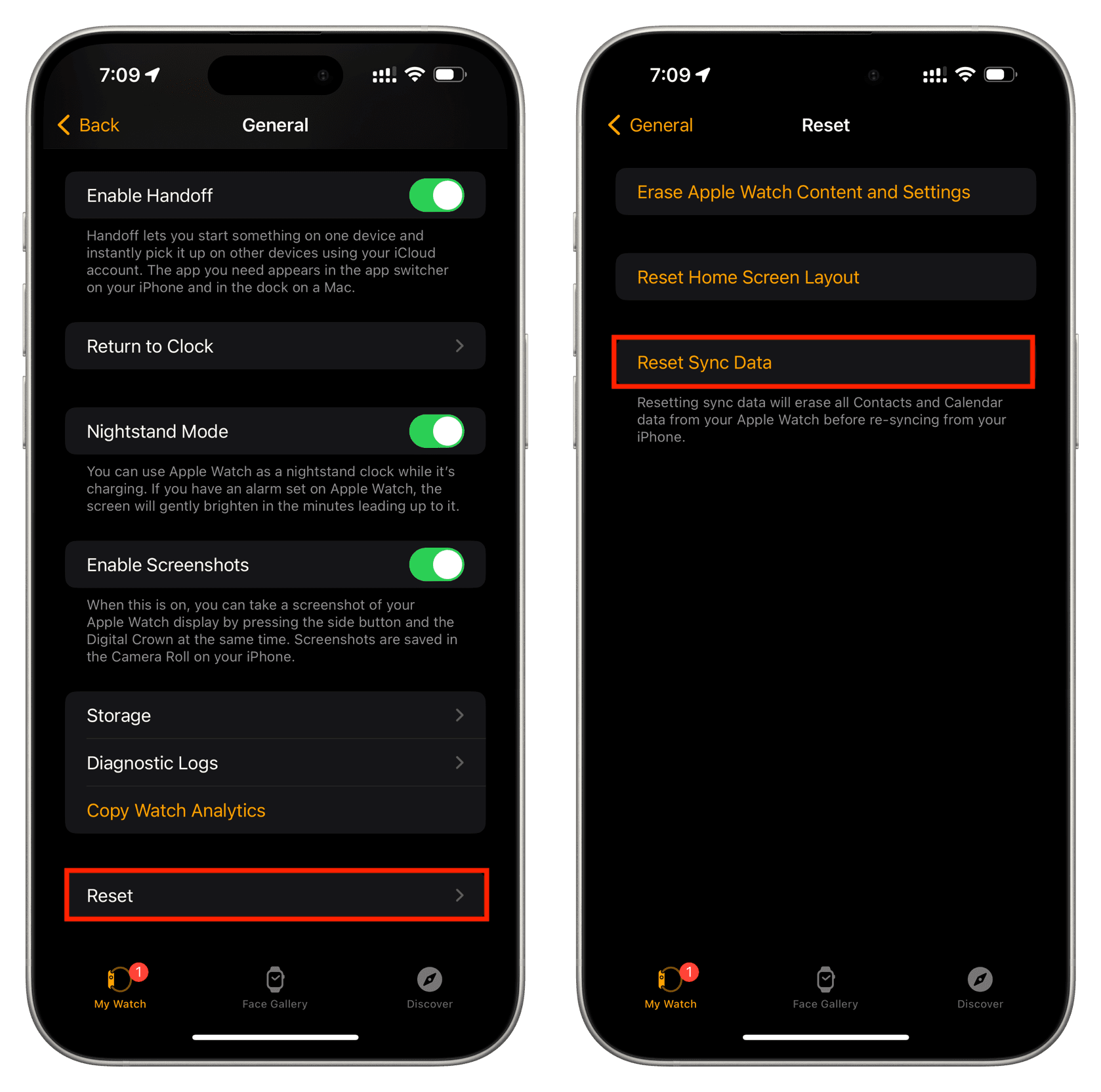
Open Watch App on phone
-
Go to 'General'
-
Scroll to 'Reset'
-
Press 'Reset Sync Data'
-
There will not be any feedback on this step after you press it
-
Power on Apple Watch
-
Calendar will load back in
If this does not fix the syncing issue, one can do the following steps as well:
- On your iPhone, go into Settings
- Choose "Calendar"
- Choose "Accounts" then select the account that is not syncing correctly.
- From that account, you should see the option to sync Mail, Contacts, Calendars, Reminders, and Notes. Find the section that is not syncing correctly and hit the toggle button to turn it off.
- Wait a minute, then toggle the section back on. Wait five to ten minutes to see if the Apple Watch data re-syncs. If it does, you can end here. If it does not,
- Go back to the iPhone, into the account that is having issues, and select "Delete Account" then "Delete from my iPhone".
- Wait until everything is deleted, then re-add the account following the normal account addition process.

